Review an Application Form
To review the submitted application and take the necessary actions, follow the steps below:
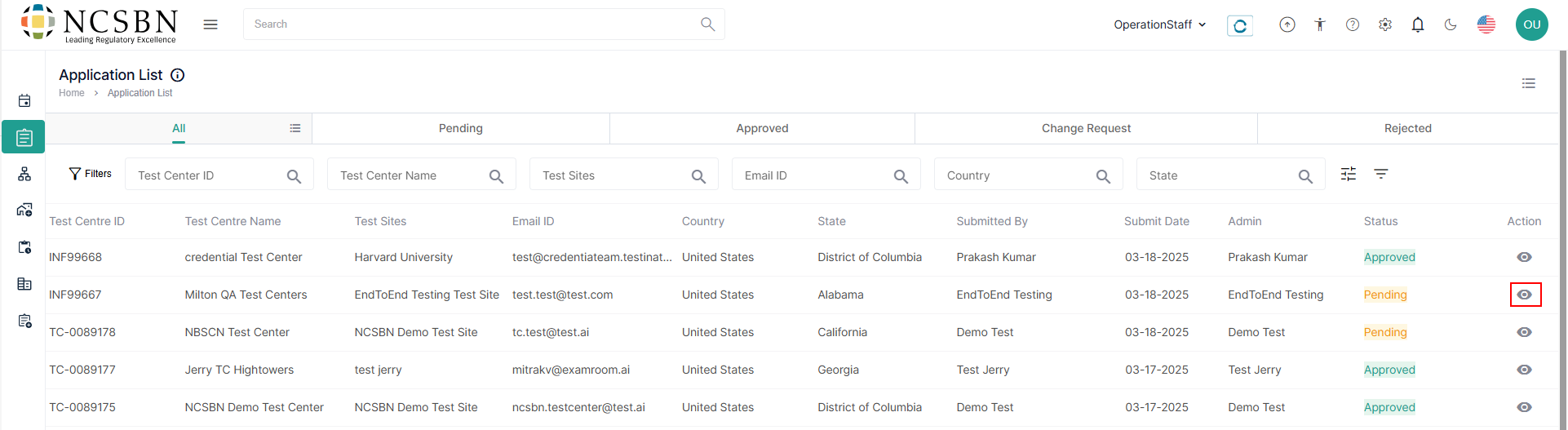
- Navigate to the Left Side Menu and select Application.
- Select an application from the list and click on the View icon.
Site Information
The application form will contain site information for applicants who are new to the TSM system and will submit their first test center.
- In the site information section, you can review the complete business details, including the business name, registered legal name, established date, and proof of business registration, along with address and contact information.
- Click Next to proceed once you have reviewed the site information.
Basic Information
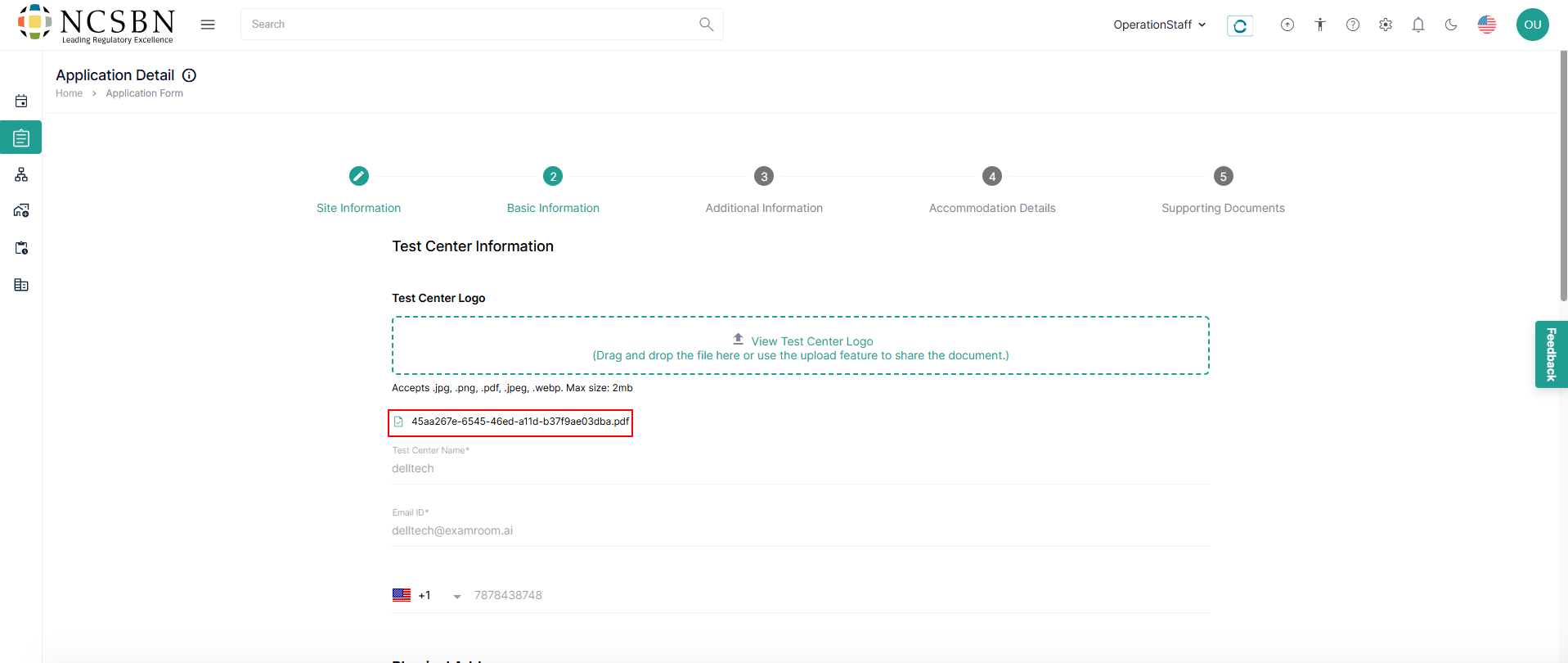
- In the Basic Information section, review the test center name, email address, and contact number, along with the test center logo.
- To view the uploaded document, click on the displayed Document Name below the test center logo field.
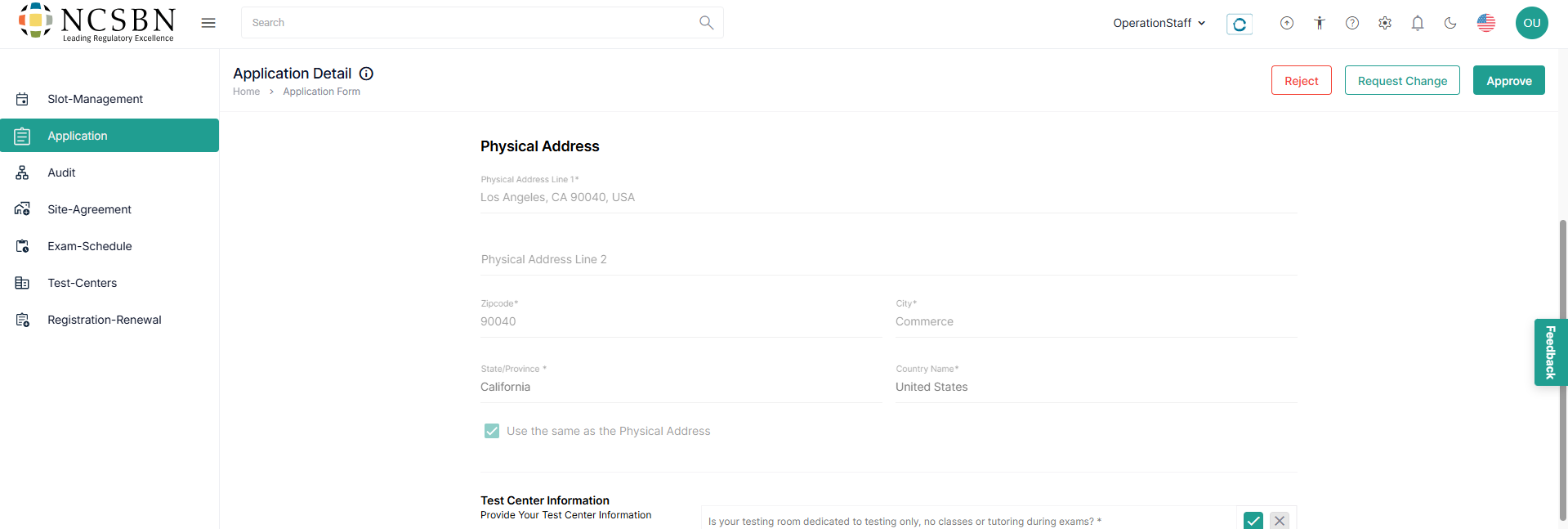
- Check the physical address of the submitted test center in the physical address section.
Note: If the billing address is different, the details provided will appear after the below physical address.
- Review of the provided test center information.
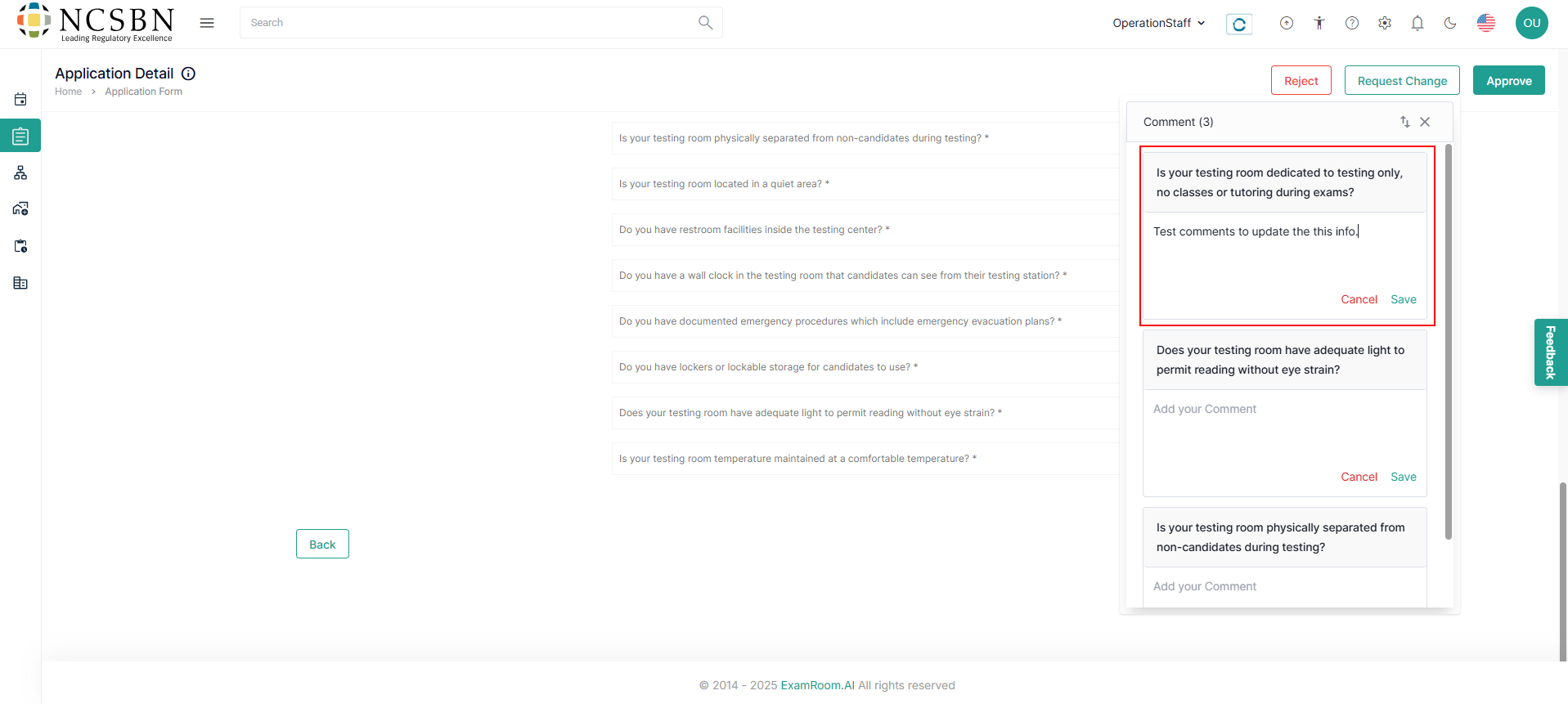
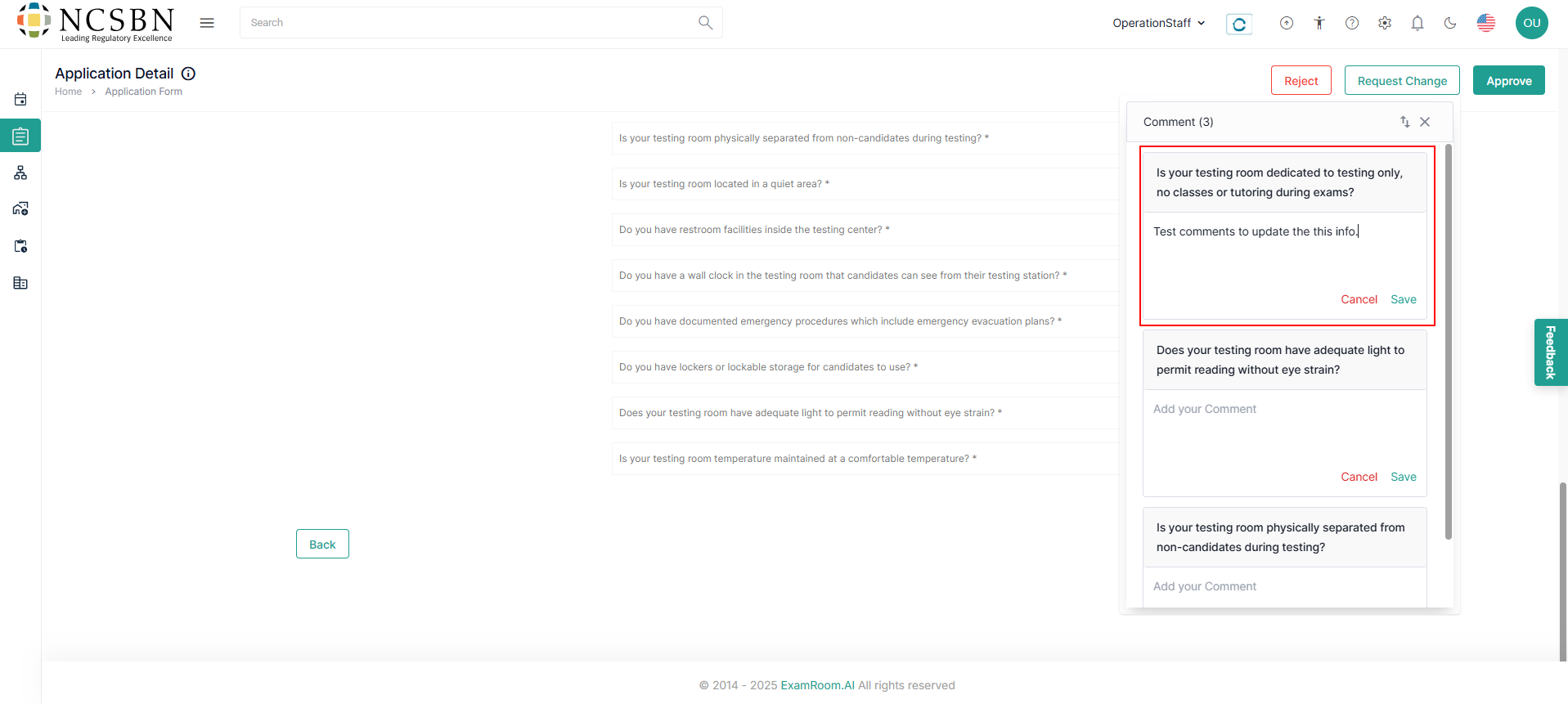
- Utilize the add comment option for any change request.
- To update the comment, click on any information field, and a pop-up box will appear for you to add your notes about the selected field comments.
- Enter your change request details in the comment box and click Save. To discard, click Cancel.
Note: You can review and add comments for all the sections of the application form before sending it back the change request.
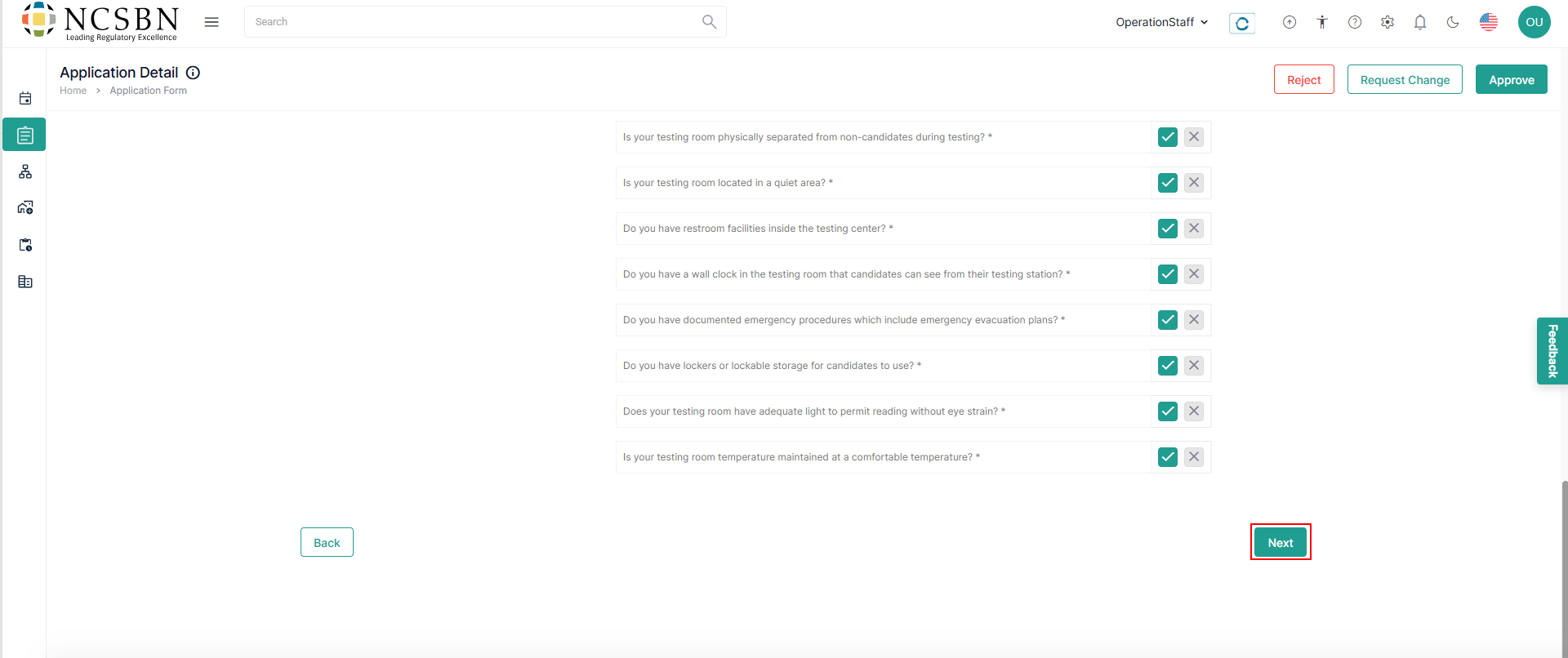
- Click Next to proceed to the additional information page and Back to go to the previous page.
Additional Information
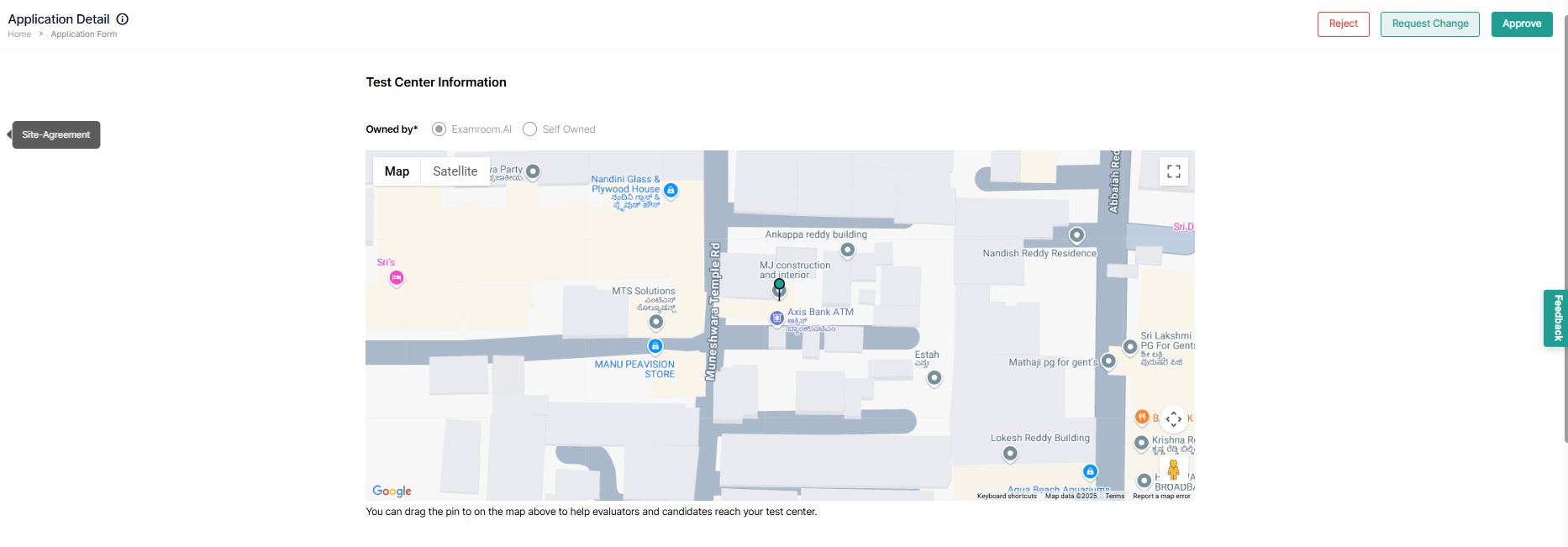
In the Additional Information section, verify the location of the test center and testing availability and unavailability by following these steps:
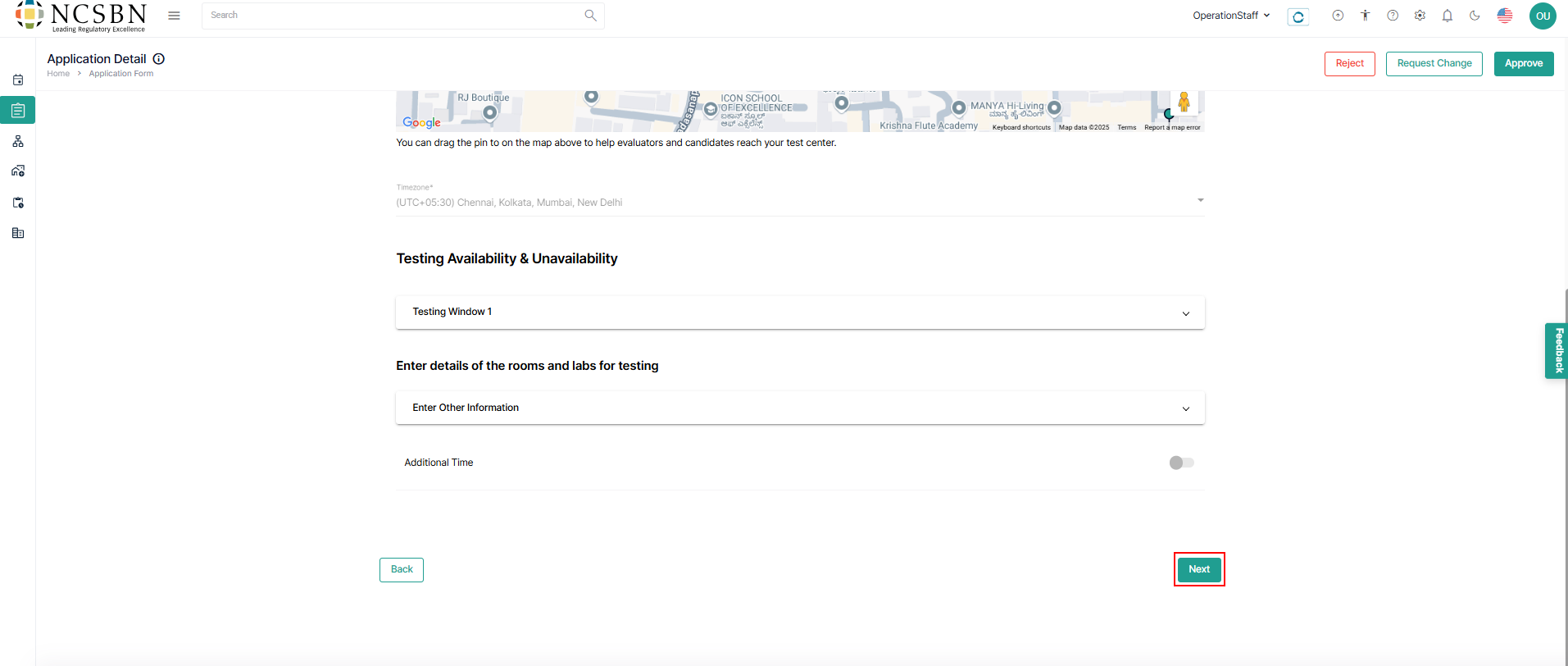
- Review of the test center location on the map.
- Verify the additional details of the test center before proceeding.
- Utilize the add comment option for any change request.
- To update the comment, click on any information field, and a pop-up box will appear for you to add your notes about the selected field comments.
- Enter your change request details in the comment box and click Save. To discard, click Cancel.
Note: You can review and add comments for all the sections of the application form before sending it back the change request.
- Click Next to proceed to the additional information page. Click Back to go to the previous page.
Accommodation details
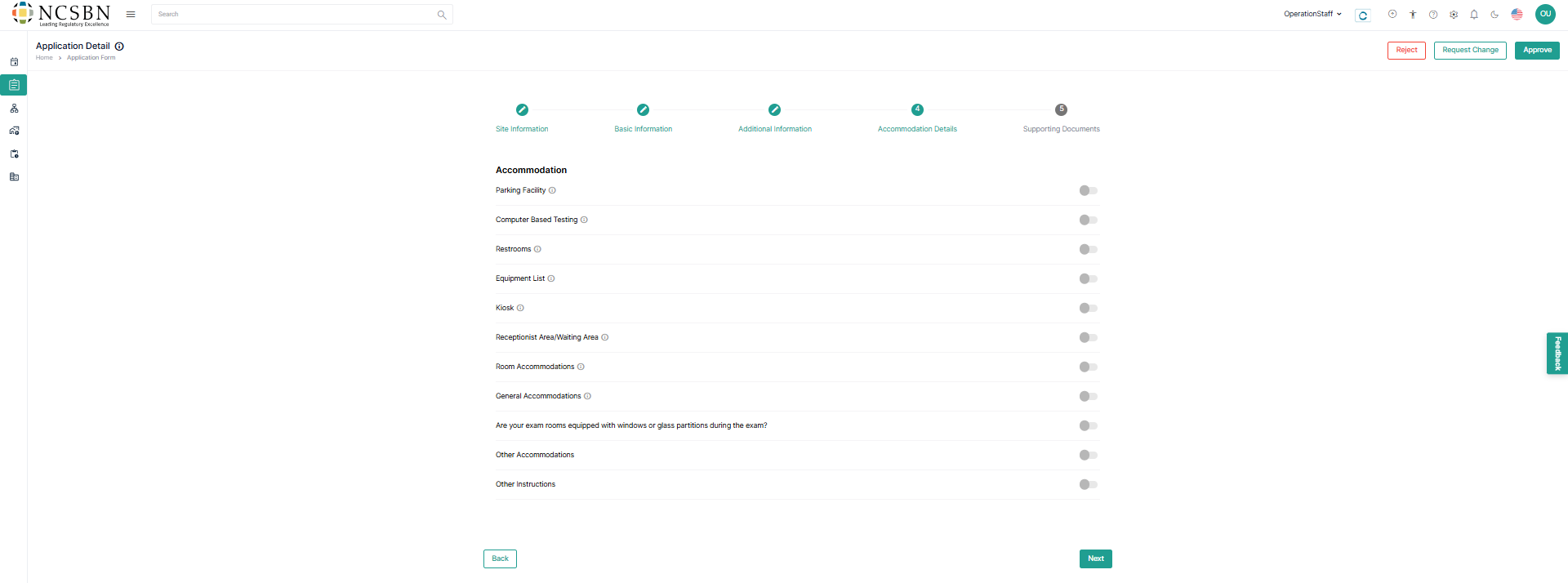
- In Accommodation, review the options and check the toggle buttons.
- Click Next to proceed with the special accommodation section page and Back to return to previous section.
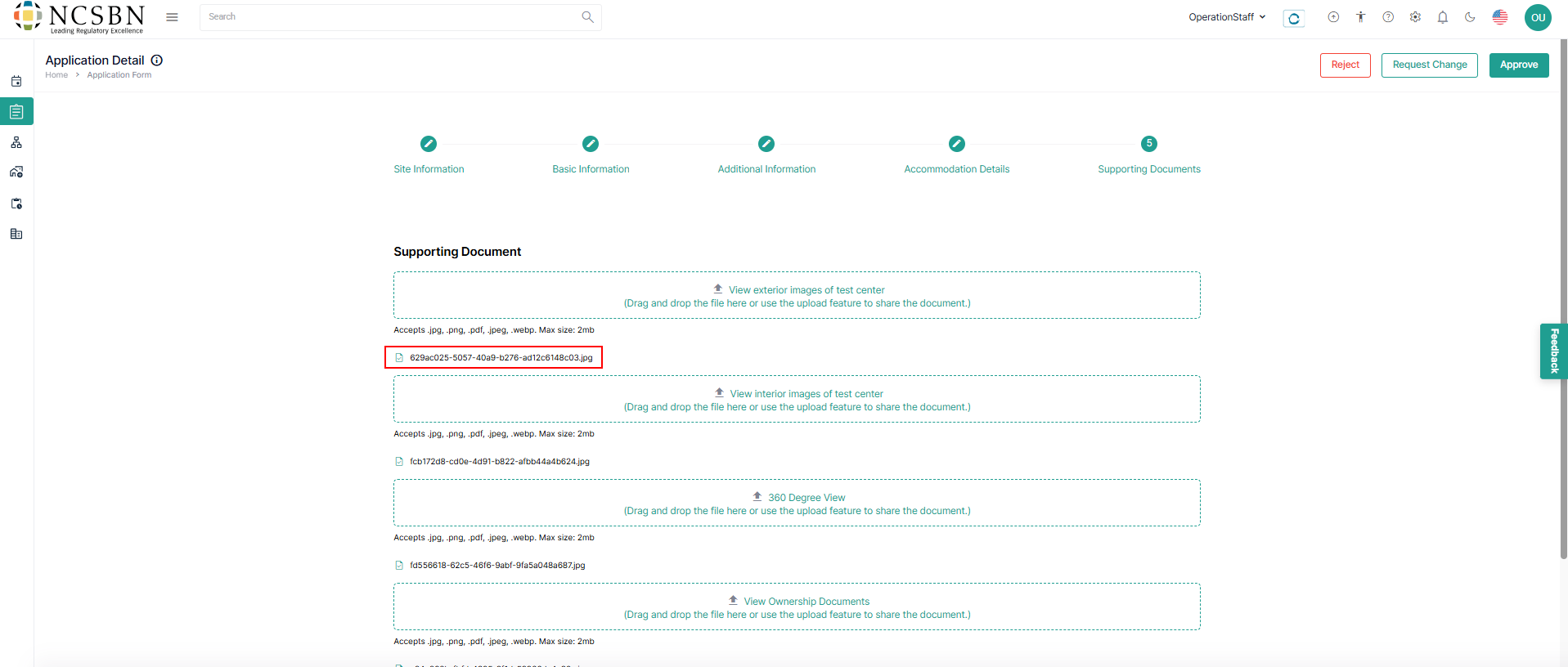
Supporting Document
- Review and verify the supporting documents and take necessary actions.
- To view the uploaded document, click on the displayed Document Name below the test center logo field.
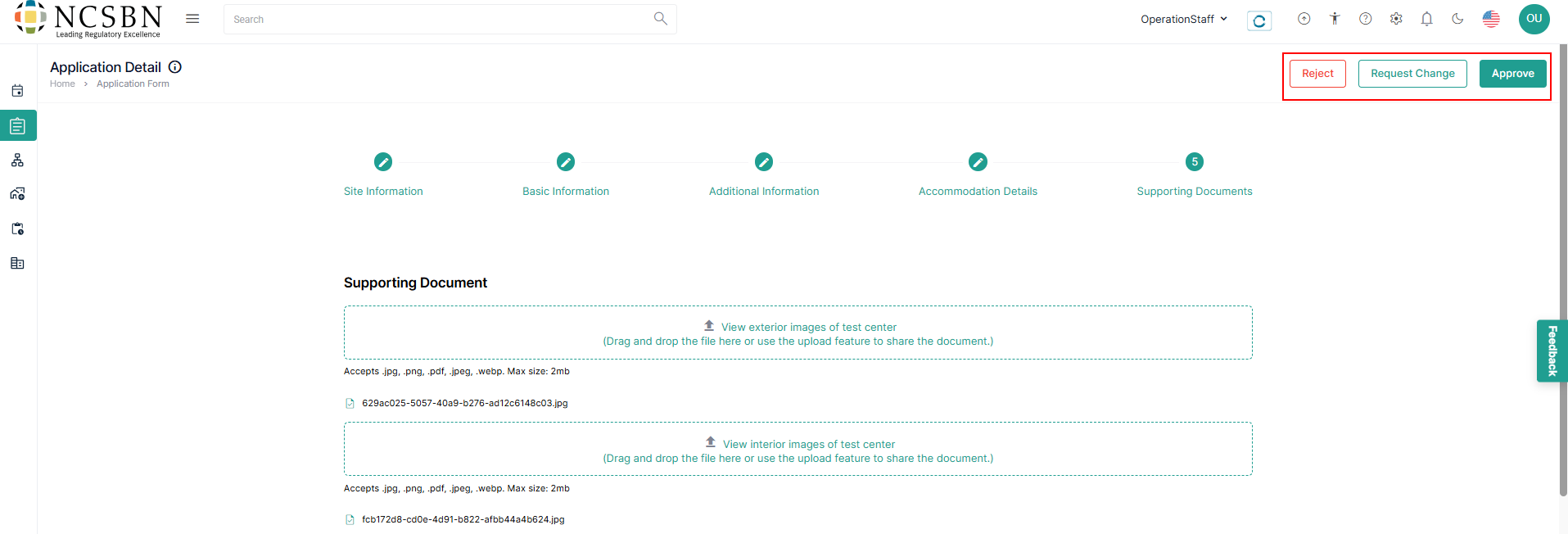
- On the top right corner of the screen, there are three options available:
- Click on Reject to deny the application if it does not meet the required criteria or standards.
- Click on Request Change to ask the applicant to make specific modifications to improve their application submission.
- Click on Approve to accept the application when it satisfies all requirements and meets our standards for enrollment and a confirmation pop-up notification appears.
- Click Yes to approve the application form or Click No to remain on the current page without changes.
- Note: A pop-up message appears as confirmation that the application form is approved successfully.