Forgot Password
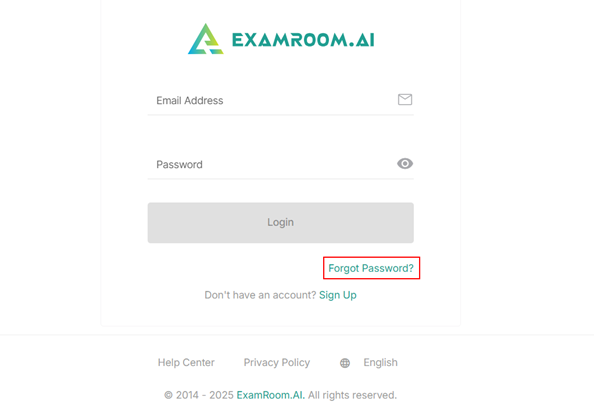
If you have already registered but have forgotten your password, you can reset it on the login page by clicking Forgot Password.
To reset your password, follow these steps:
- Click Forgot Password provided on the login page.
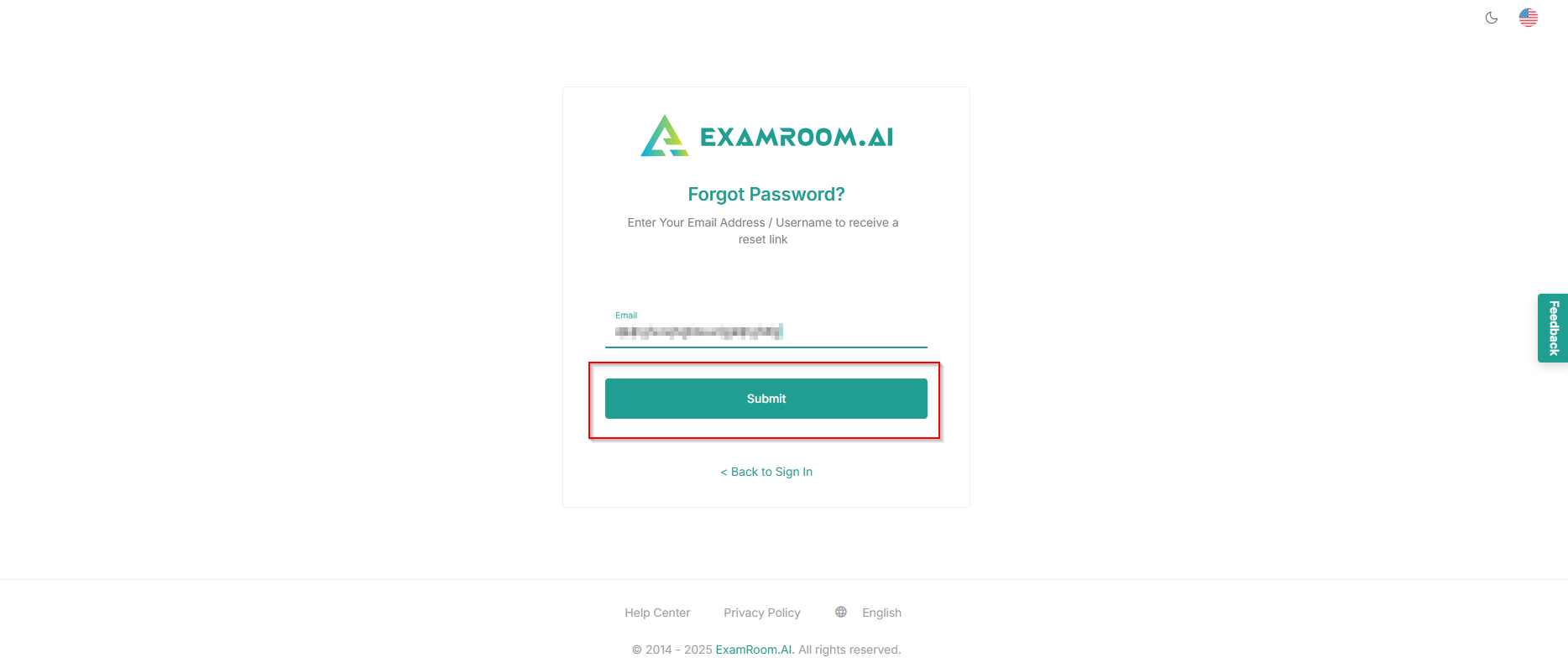
- In the Email field, enter your registered email address and click Submit. Click Back to Sign In to go back to the login page.
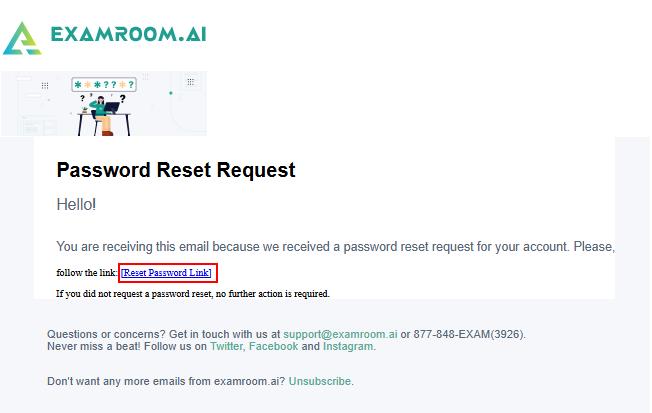
- After submitting the password change request. An email with a Reset Password Link is sent to the registered email address.
- Click the Reset Password Link to redirect to the Set Password page.
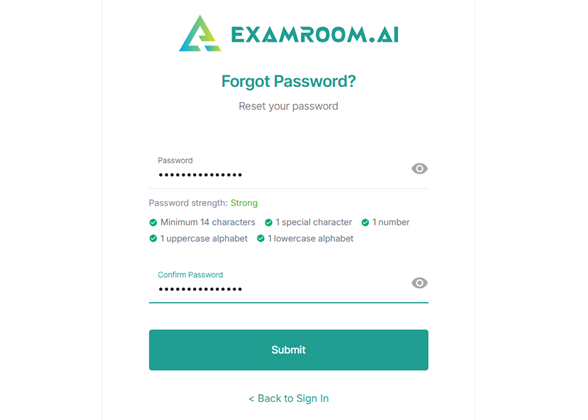
- In the Set Password page, enter your new password in the Password field and retype the same in the Confirm Password field for verification.
Note: Please ensure the password meets the organization's security standards, with a minimum of 14 characters, which must include at least 1 uppercase, 1 lowercase, 1 digit, and 1 special character. - Click the view (
) icon to view your new password. Click Submit to update the password. Click Back to Sign in to exit the reset password page.
- After submitting, a dialogue box is shown as Your password is successfully changed and log in to your account with updated credentials.