Add New Test Center
The Test Site Management platform is used to manage multiple test centers. After the first test center goes live, the site manager can add more test centers.
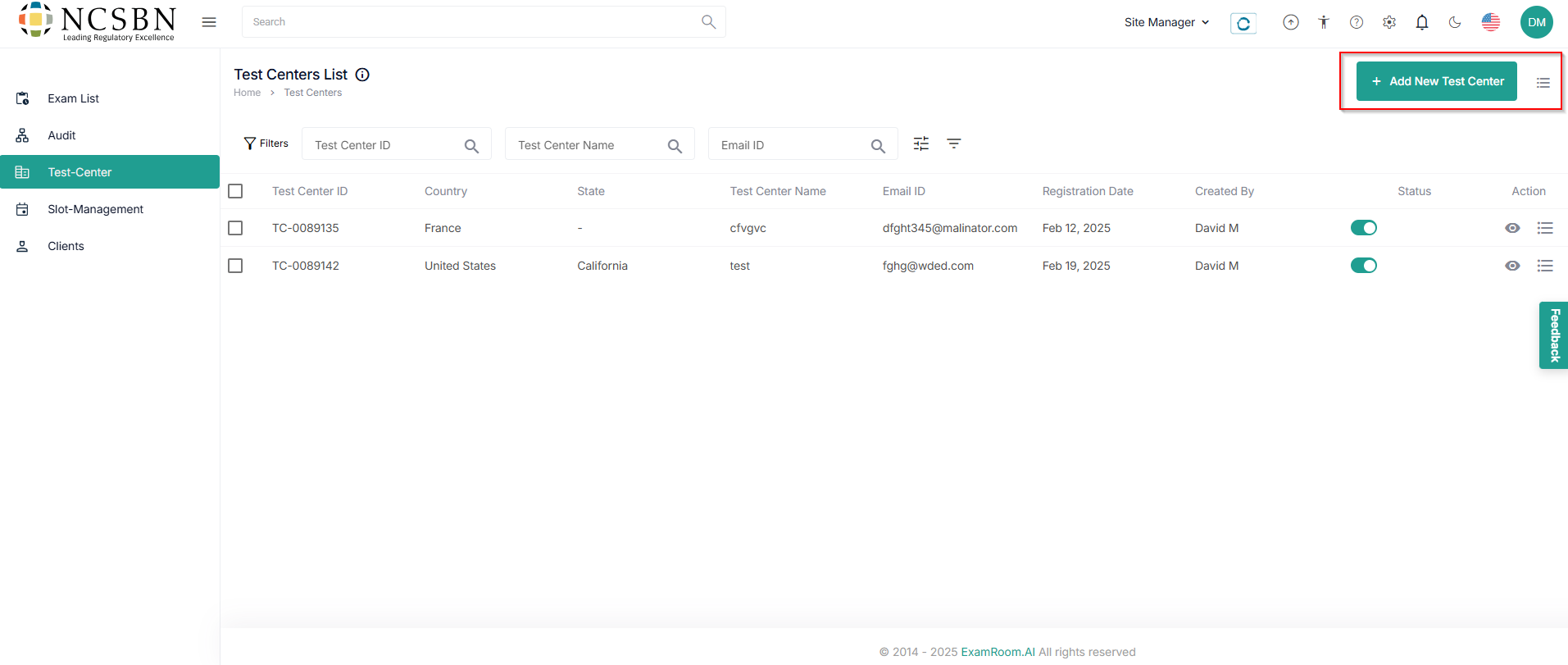
The test centers list is used to add and manage all the test centers.
- Click Add New Test Center to start with the application form to add a new test center to TSM.
Note:- Use Filters to search for specific Test Center details
- Click the hamburger (
) icon to customize the display sections.
- The Application form consists of 4 steps of information essential to perform smooth operations.

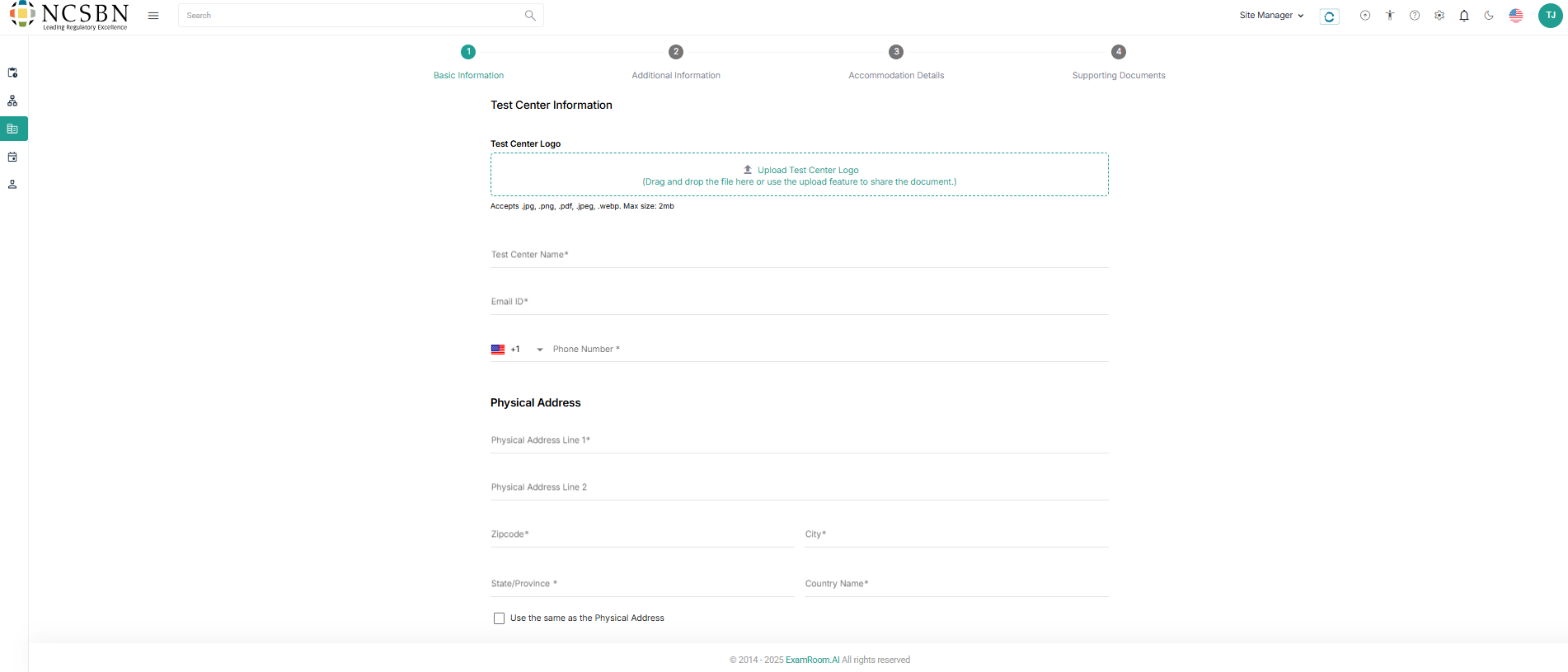
Basic Information: Test Center Information
- This section has all the official business information like Test Center Information, Physical Address, and Billing Address. Fill out all mandatory fields to proceed to the next step.
Note: If applicable, please Upload Test Center Logo with a maximum file size of 2MB.
(Acceptable file types are .JPG, .PNG, .PDF, .JPEG, and .WEBP)
- After filling in all the details, click Next to proceed.
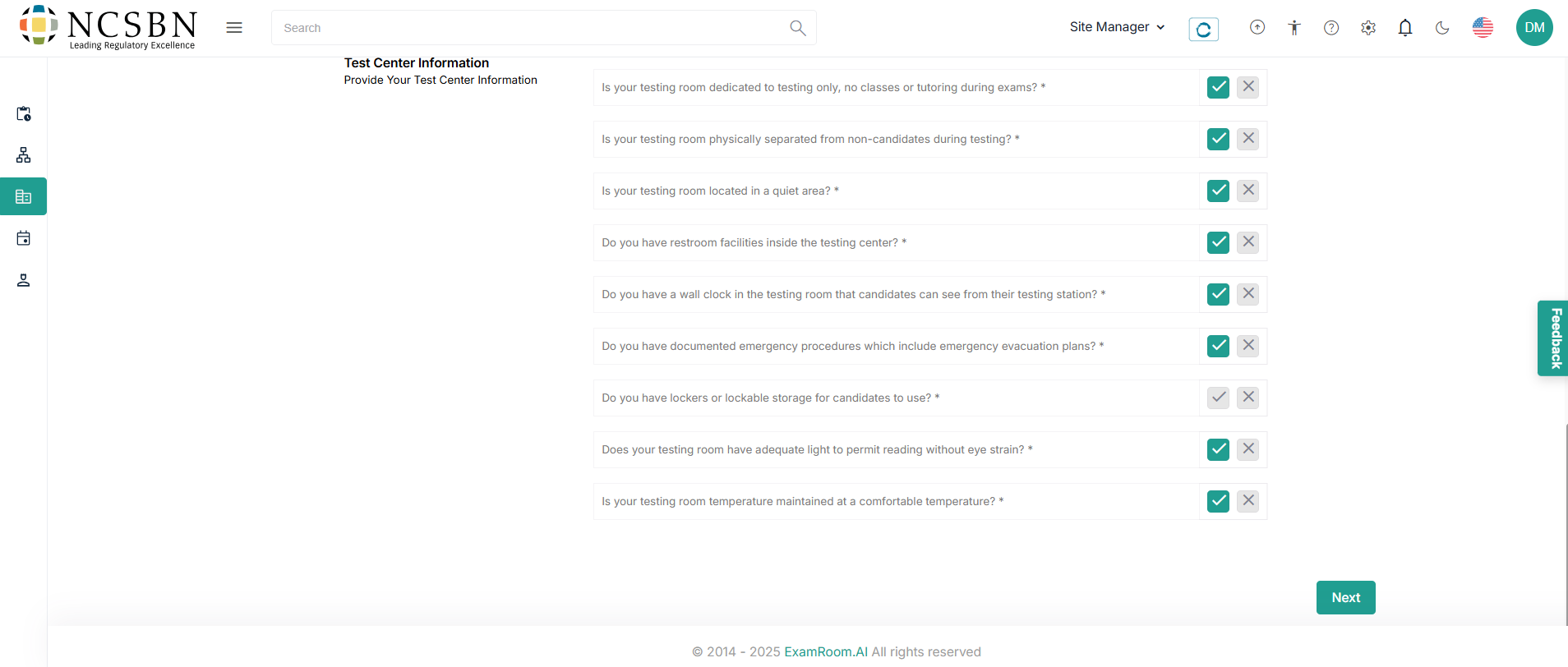
Additional Information: Test Center Information
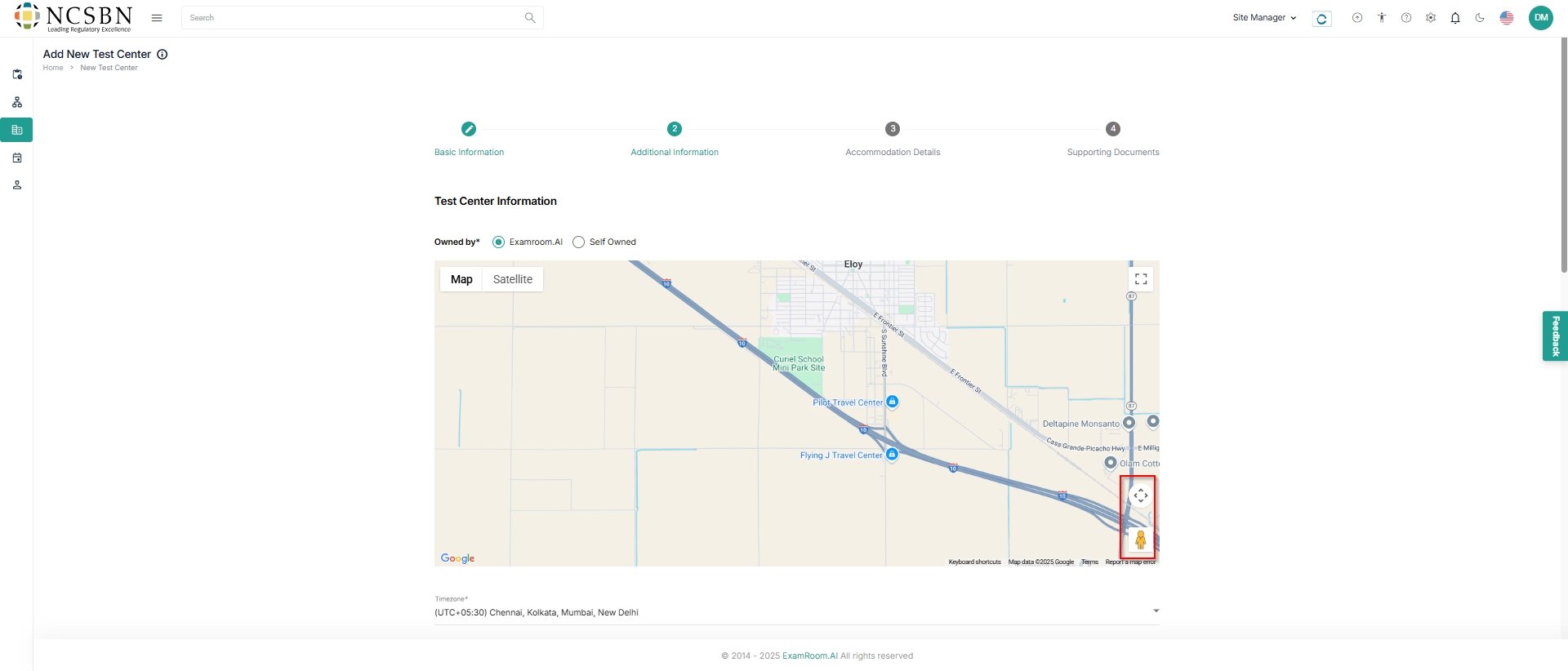
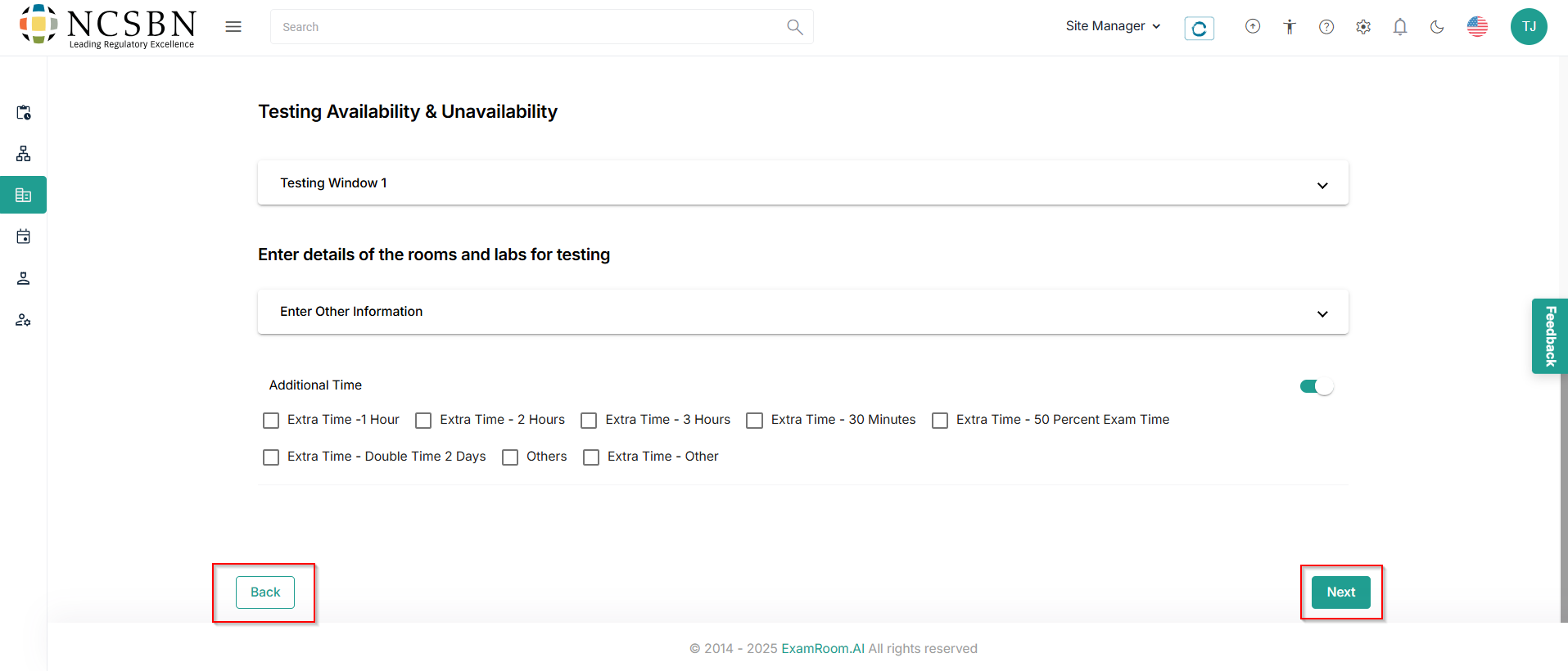
- In Additional Information, check owned by, verify the precise test center location, time zone, and add test center availability and other information to proceed to the next step.
Note:- Use the pointer
icon to pinpoint the exact test center location to help evaluators and candidates reach the test center.
- Use a Map or Satellite view at your convenience to locate the test center.
- Use the
icon to adjust the view of the map.
- Use Pegaman (
) for the street view in Satellite.
- Use the pointer
- After filling in all the details, click Next to proceed and Back to return to the previous step.
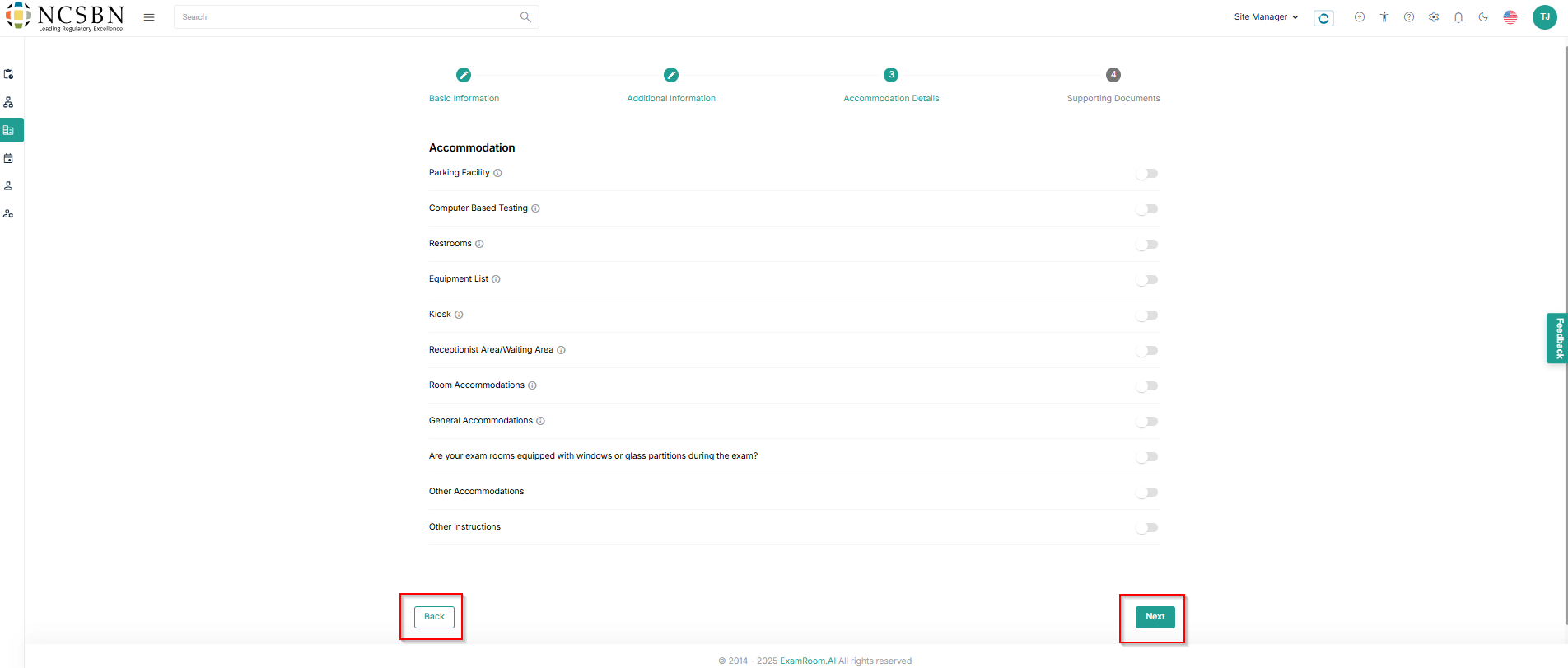
Accommodation Details
- Under accommodations, toggle the available accommodation and enter the mandatory details.
- After filling in all the details, click Next to proceed and Back to return to the previous step.
Supporting Documents
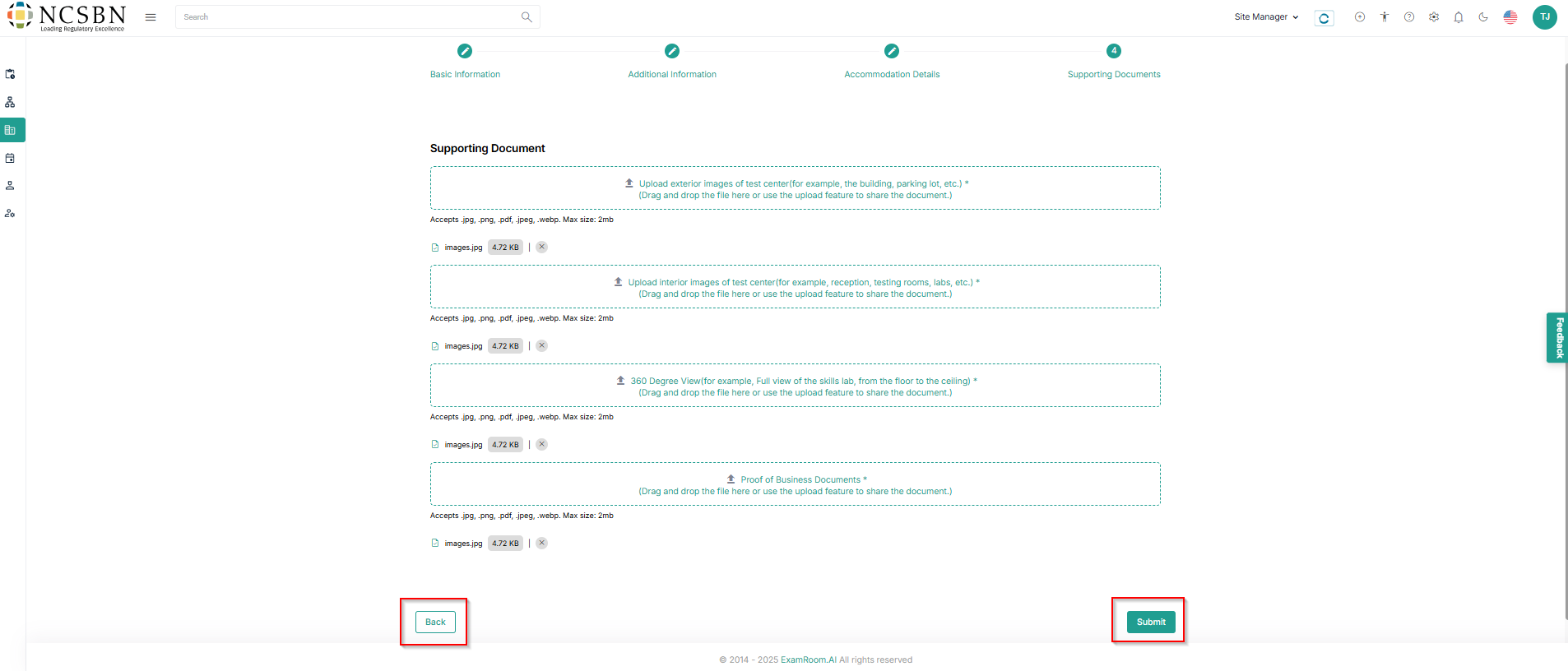
- In the Supporting Documents, Upload all the mandatory fields like Exterior Images, Interior Images, 360 Degree View, and Business Proof documents of the Test Center.
Note:- Max document size shouldn’t exceed more than 2MB and the only accepted file types are .PNG, .JPG, .PDF, .JPEG, and .WEBP.
- Click Submit to send the application form for review and Back to return to the previous step.
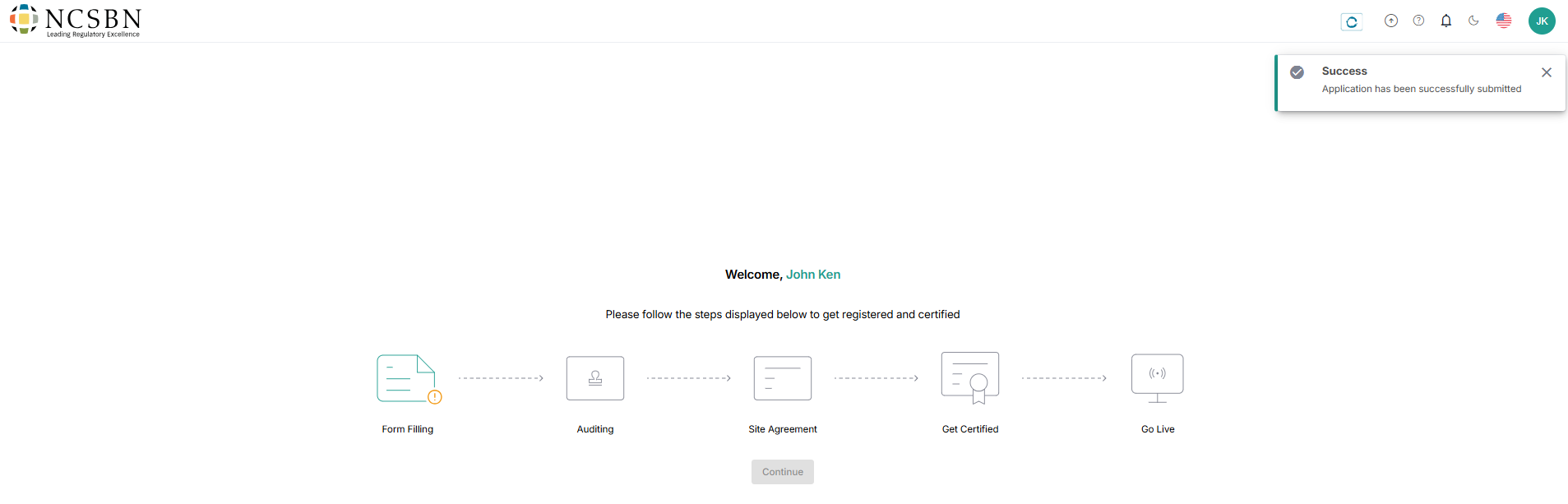
- After submission, you will receive a toaster message stating that the Application has been successfully submitted and sent for review.
- Operations teams will review the application form and act (approve, reject, and request change) accordingly.
- If the application is approved, the audit process will be started.