Reset Password - Forgot Password
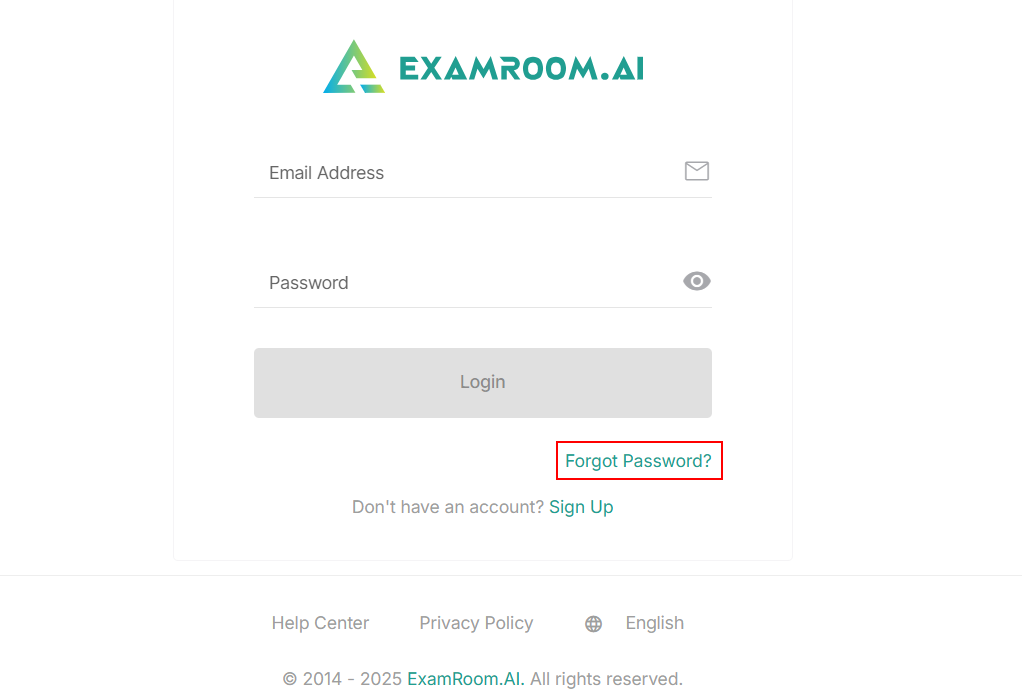
If you have forgotten your password, you can reset it on the Login page.
To reset your password, follow the below steps:
- Click on the Forgot Password button on the login page.
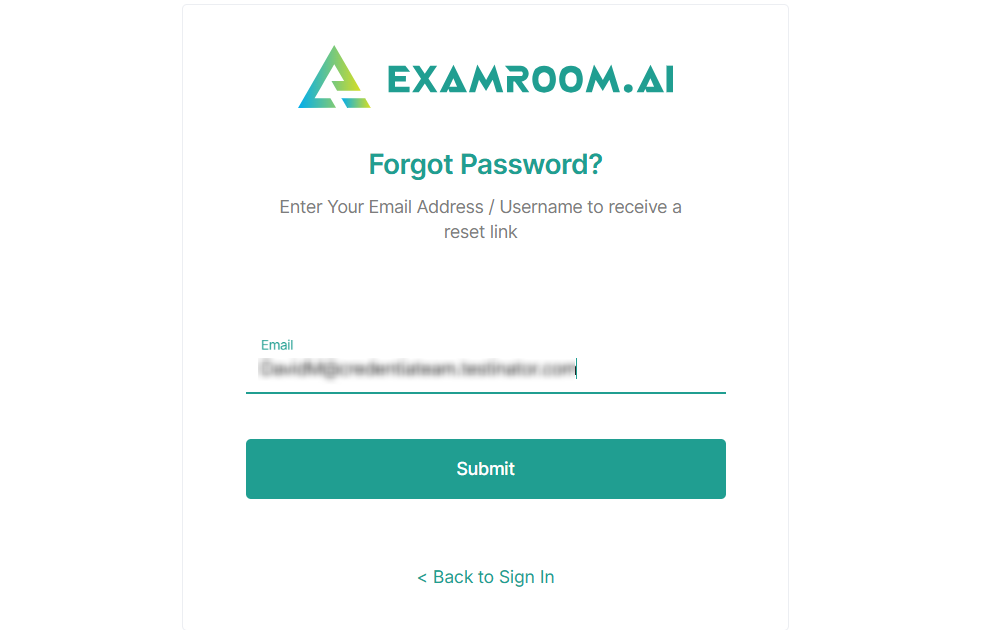
- In the Email field, enter your Registered Email Address.
- Click the Submit button to accept the request for a forgotten password or click the Back to sign in to discard and return to the Login page.
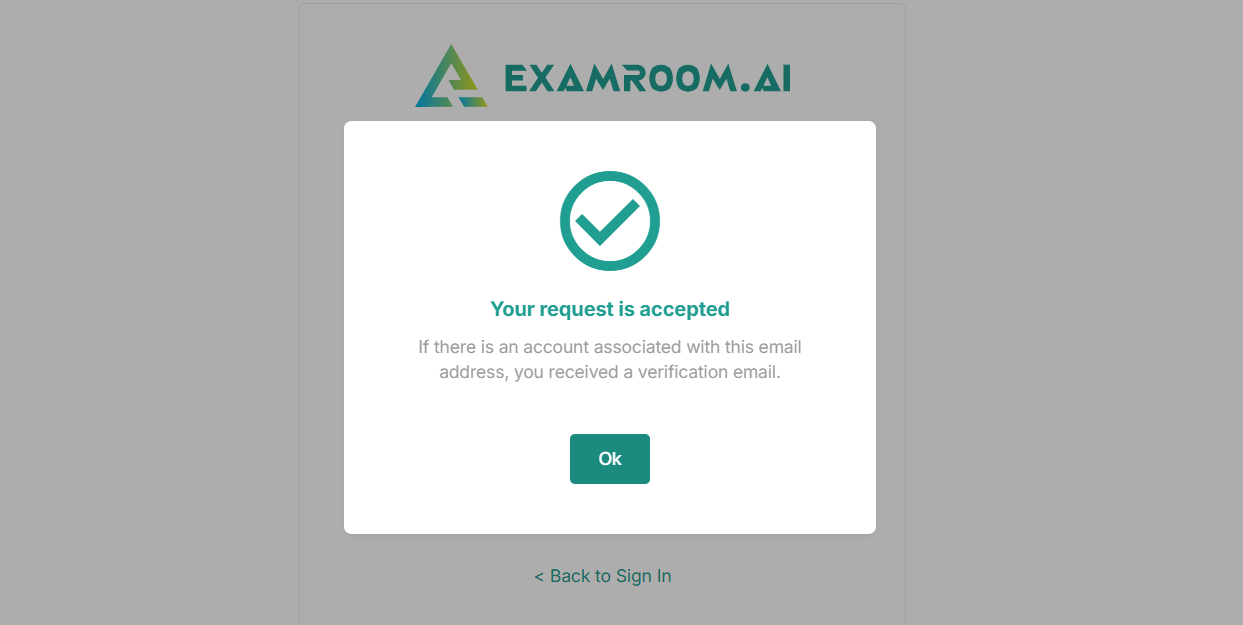
- After submission, a verification email will be sent to your registered email address. Click the OK button to continue.
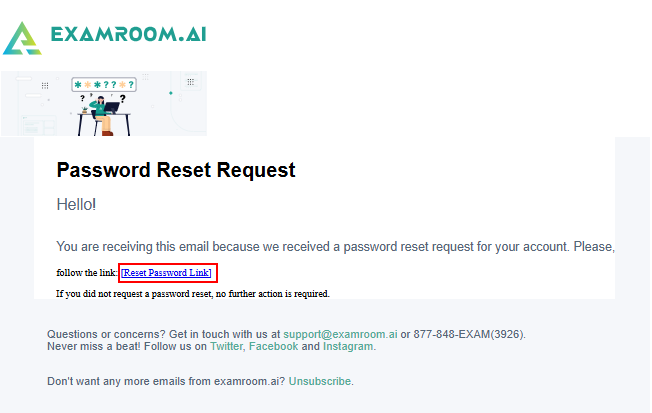
- Check your email for the reset password link. Click the Reset Password Link included in the email, and a new password window will pop up.
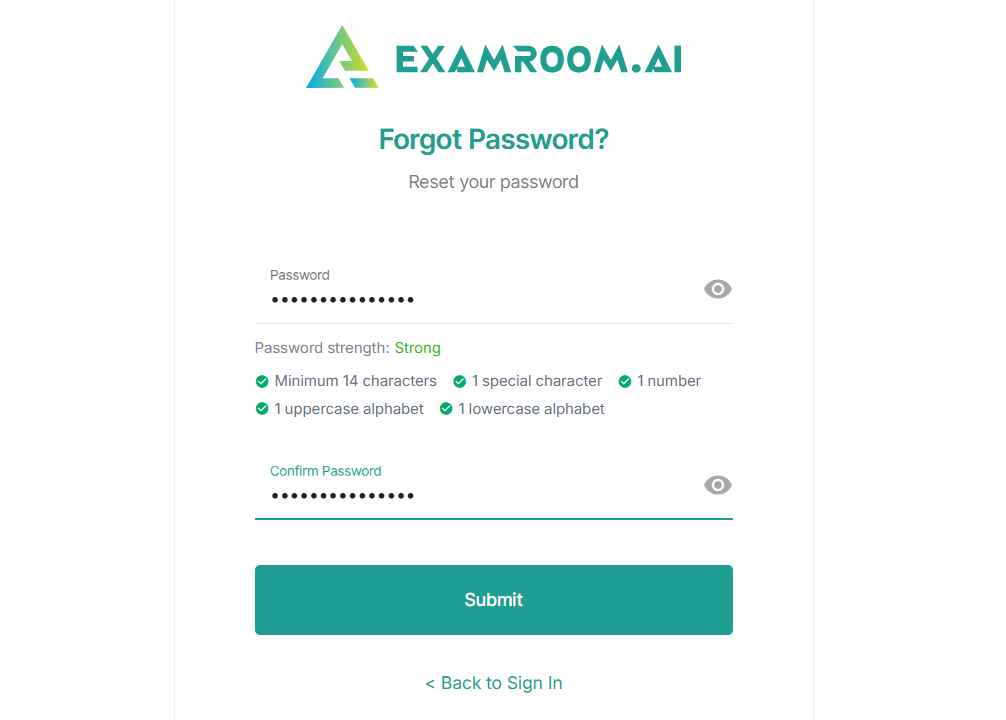
- Enter the New Password in the password field and Re-Enter the Password in the Confirm password field.
Note: Your password must be at least fourteen characters long and should include at least one uppercase letter, one lowercase letter, one digit, and one special character. - Click on the View icon to view your new password.
- Then, click Submit to save and complete the password reset or Click Back to Sign In to return to the Login page.