Add User
The Site Manager can add and manage users using Manage User in General settings in the TSM console.
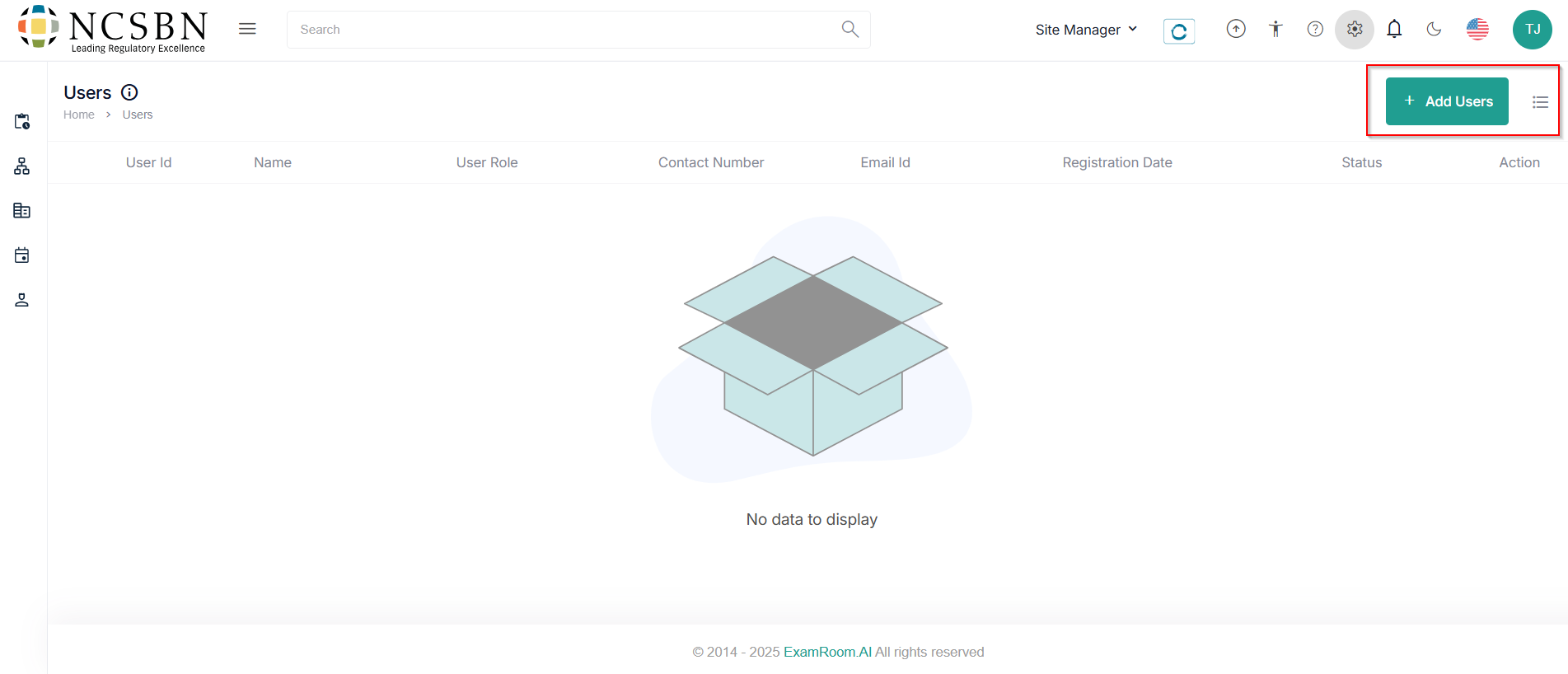
- Click + Add Users to add a new user to the Test Center.
Note: Click the hamburger () icon beside add users to customize the display sections.
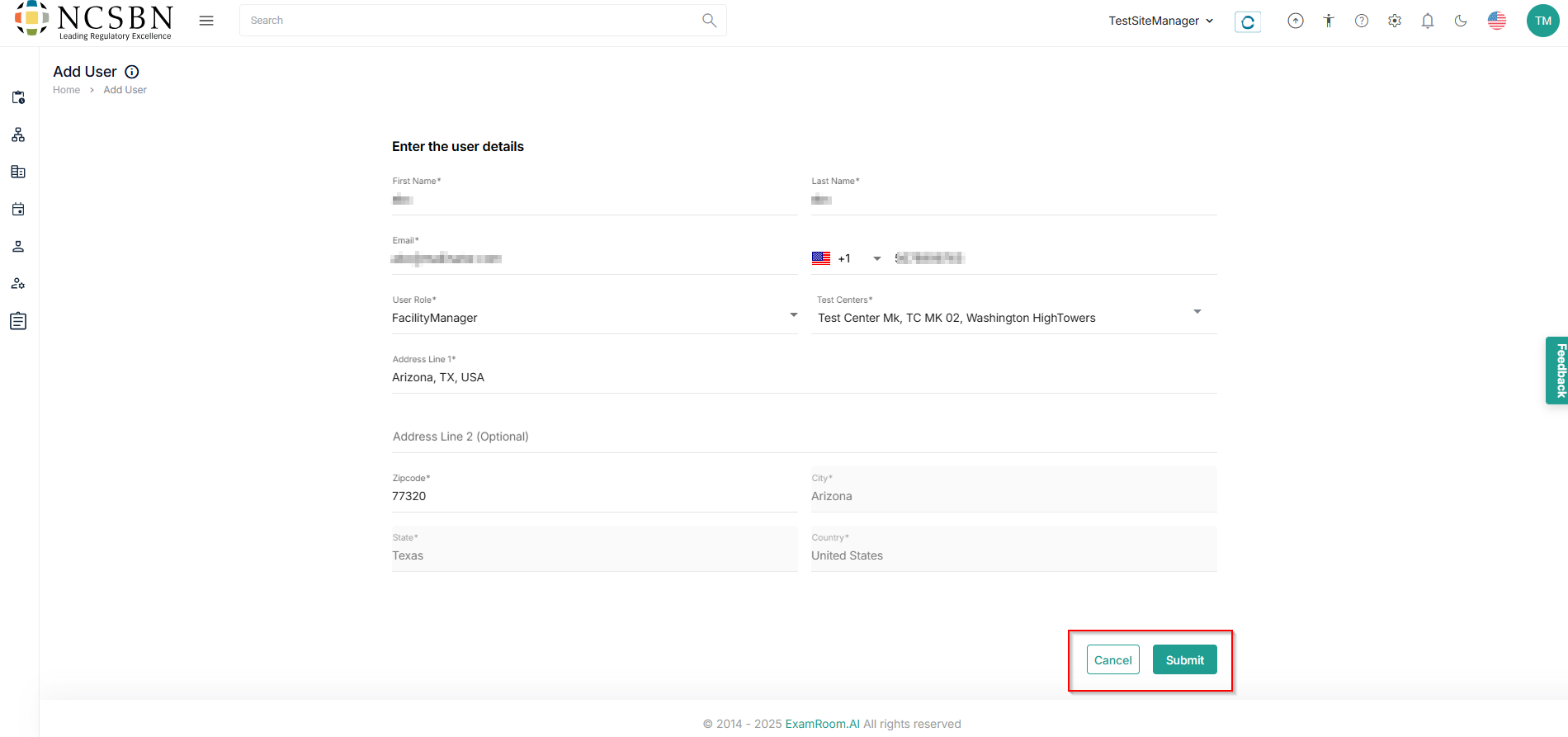
- In Enter the User details, fill out all the mandatory details
- First Name
- Last Name
- Phone Number
- User Role
- Test Centers
- Address
- Click Submit to add the new user and Cancel to go back to users.
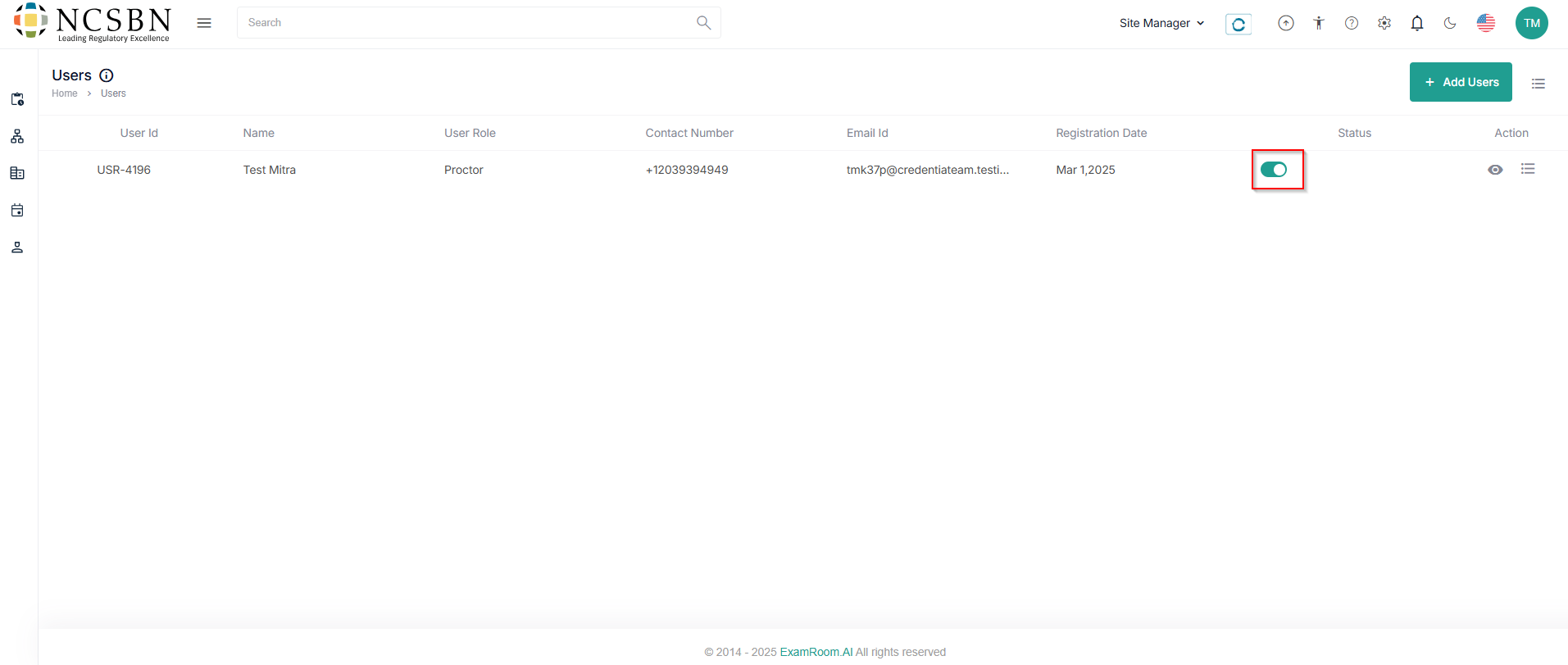
- After successfully adding, the site manager can see all the users in the Users Tab.
- Toggle on the button under the status tab to activate/deactivate the user.