Auditing
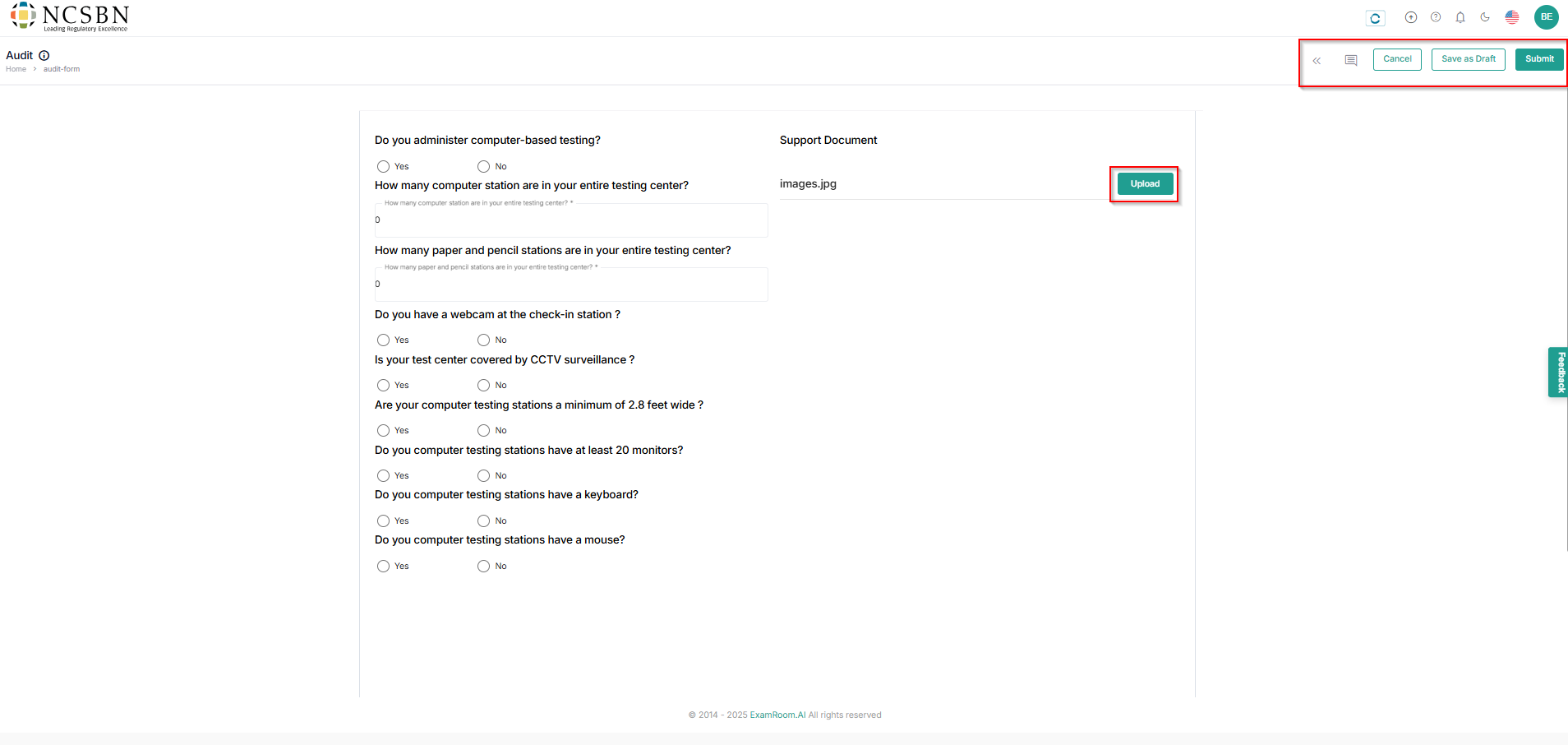
- In the Audit Form, fill out all mandatory fields and select the necessary documents for the auditing process.
Note: Ensure you read the instructions before filling out the details. - Click Upload to save the selected file.
- Click Submit to send the Audit form for review, Save as Draft to save the application form, and Cancel to go back to the Onboarding Dashboard.
- Click the message (
) icon to view the Comments from operations staff and the double arrow (
) icon to view the Activity Timeline.
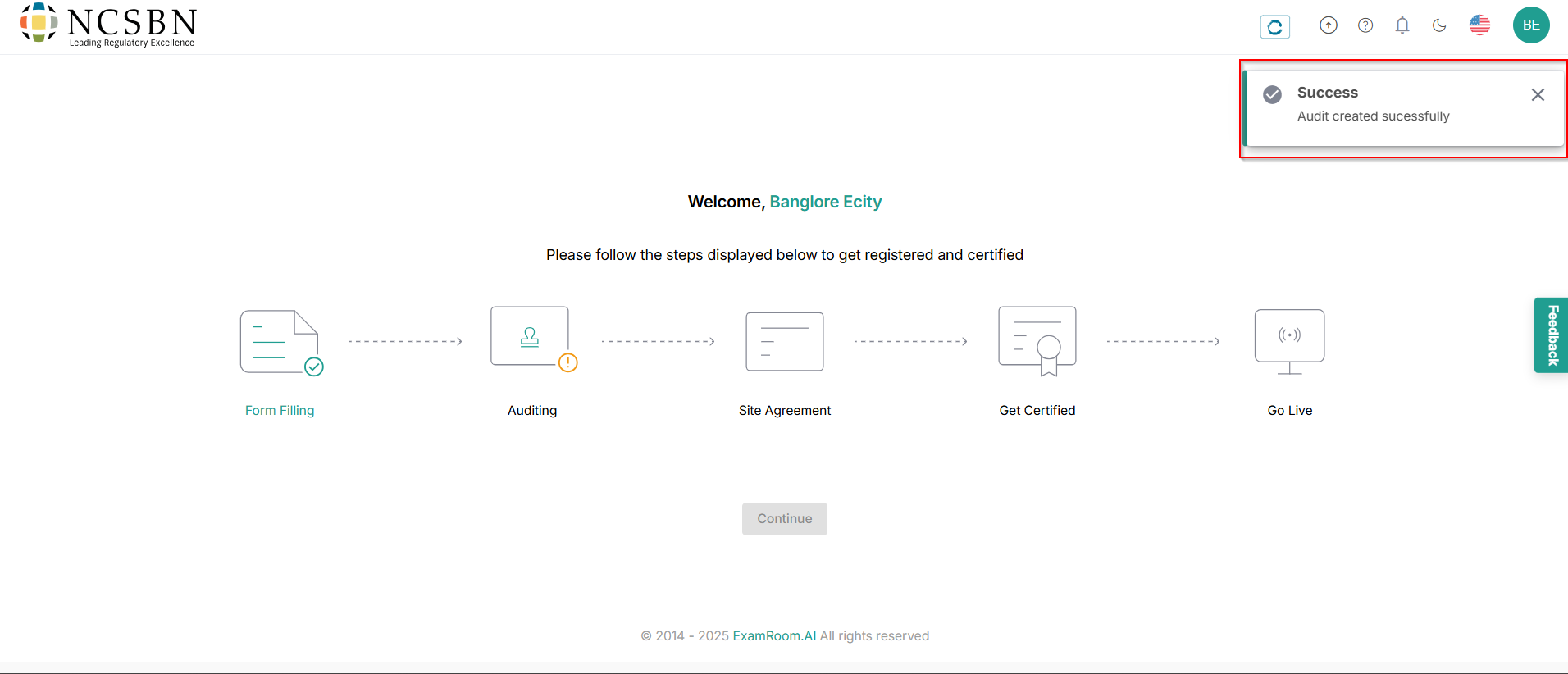
- After submission, you will receive a toaster message stating that the Audit Saved successfully and sent for review.
- Operations teams will review the audit form and act (approve, reject, and request change) accordingly.
- To check the status of the audit, hover over the audit icon.
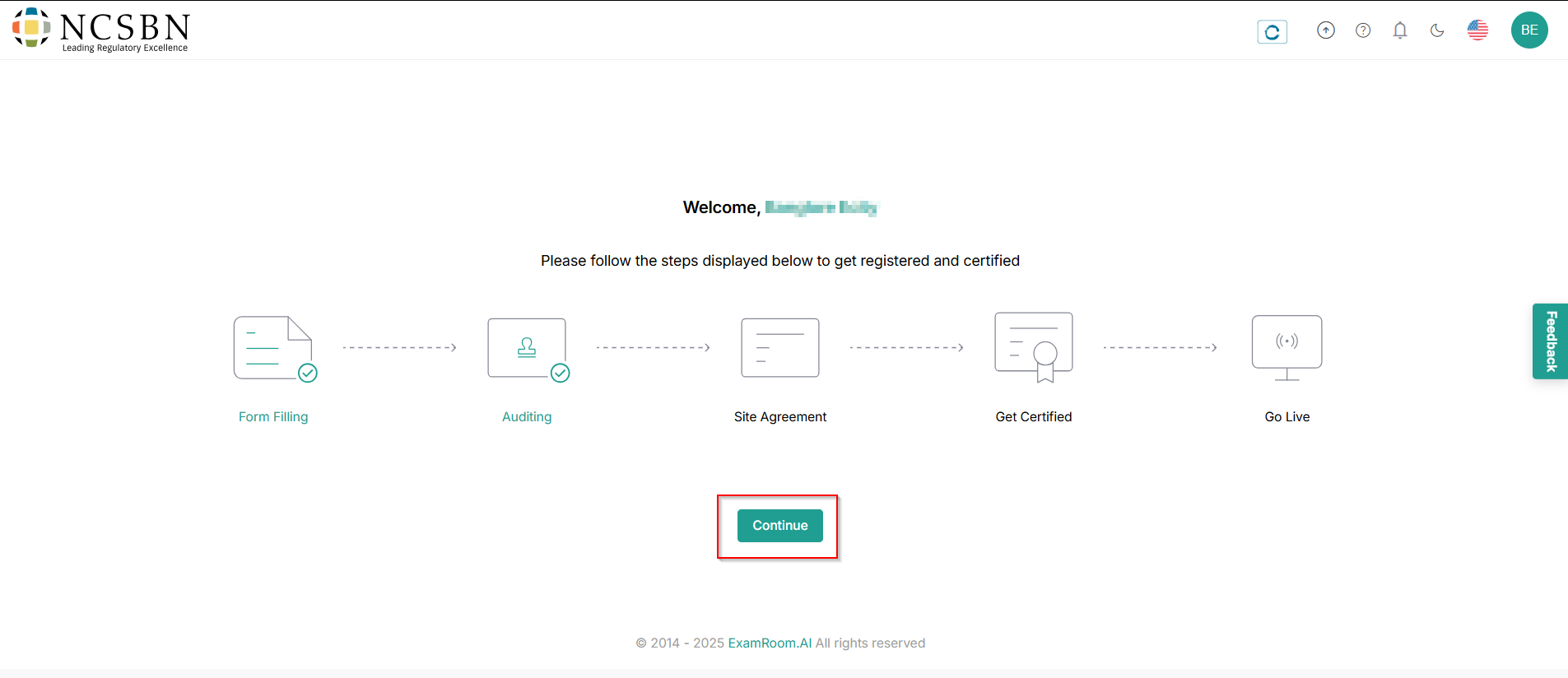
- Once approved, click Continue to start the Site Agreement Process.